Build Your Website Class · Saturday, September 6
Today we build BBRGolf.com together.
You follow the same steps on your laptop and leave with a complete website folder, ready for your own domain.
Build Your Website Class · Saturday, September 6
You follow the same steps on your laptop and leave with a complete website folder, ready for your own domain.
Two tracks, one rhythm.
Password and account safety.
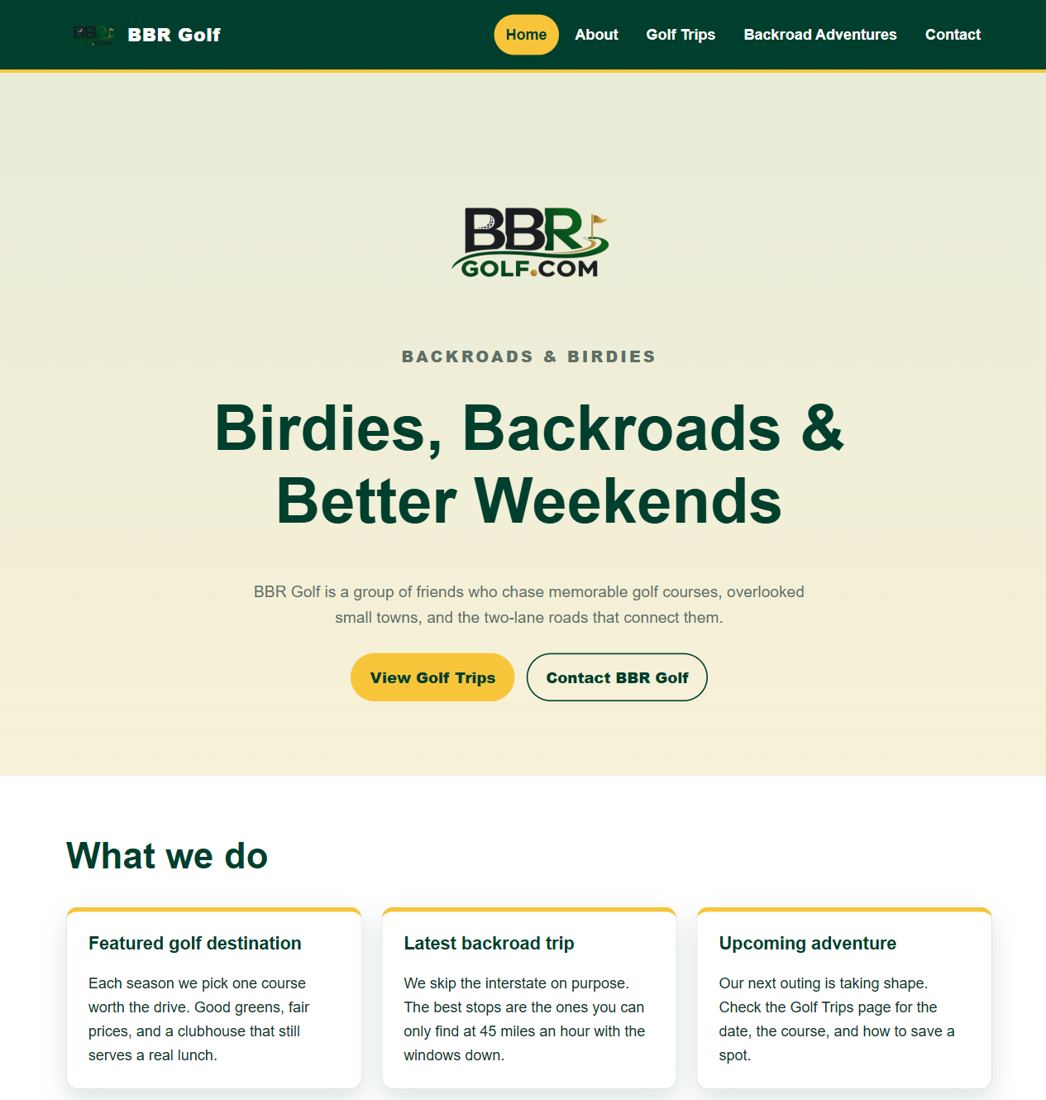
The finished BBRGolf.com, all five pages. Then bbrgolf.com typed fresh: nothing there yet.
Open course.bbrgolf.com. Download starter.zip. Unzip it. You have a folder called my-website.
Your folder shows five .html files, styles.css, and an images folder.
Say: “Right now the address goes nowhere. In ninety minutes it goes here.”
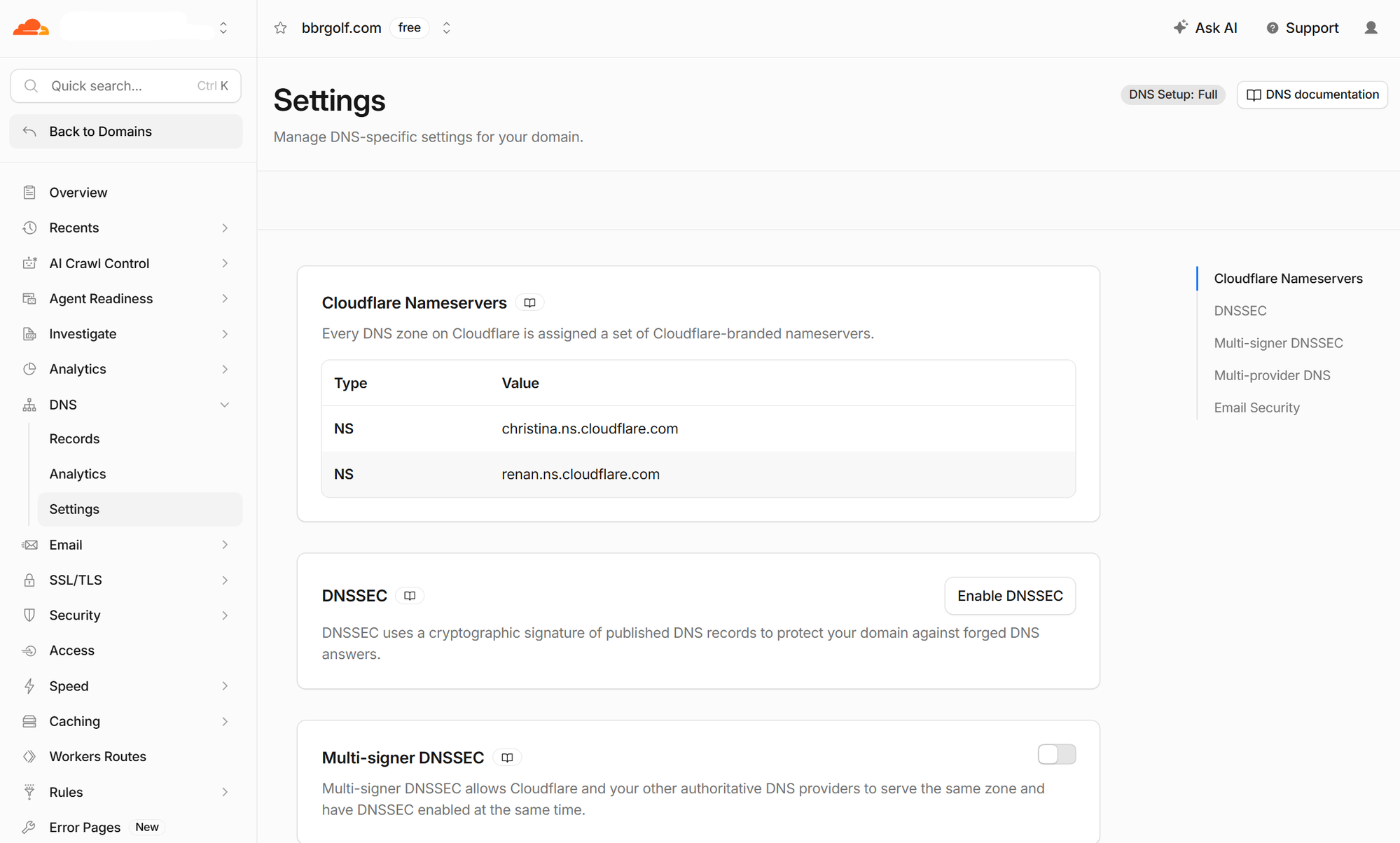
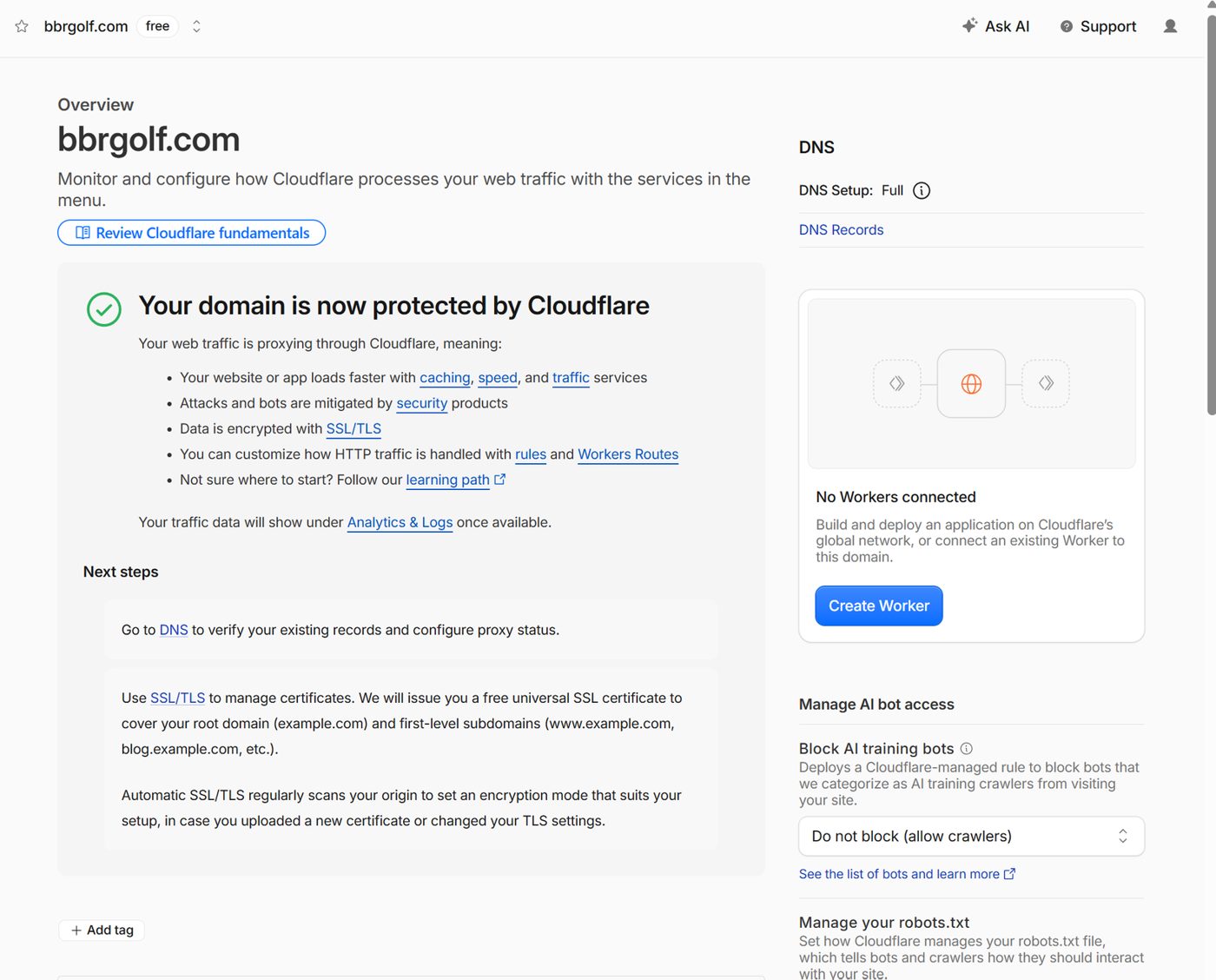
Four words: Domain (bbrgolf.com, the name). Hosting (where the files sit). Files (the pages). DNS (the address-book entry that points the name at the files).
Say your domain out loud, and where you bought it.
You can point to your domain in your Cloudflare account, or you know it is on the way.
Say: “Four words, and you only had to buy one of them.”
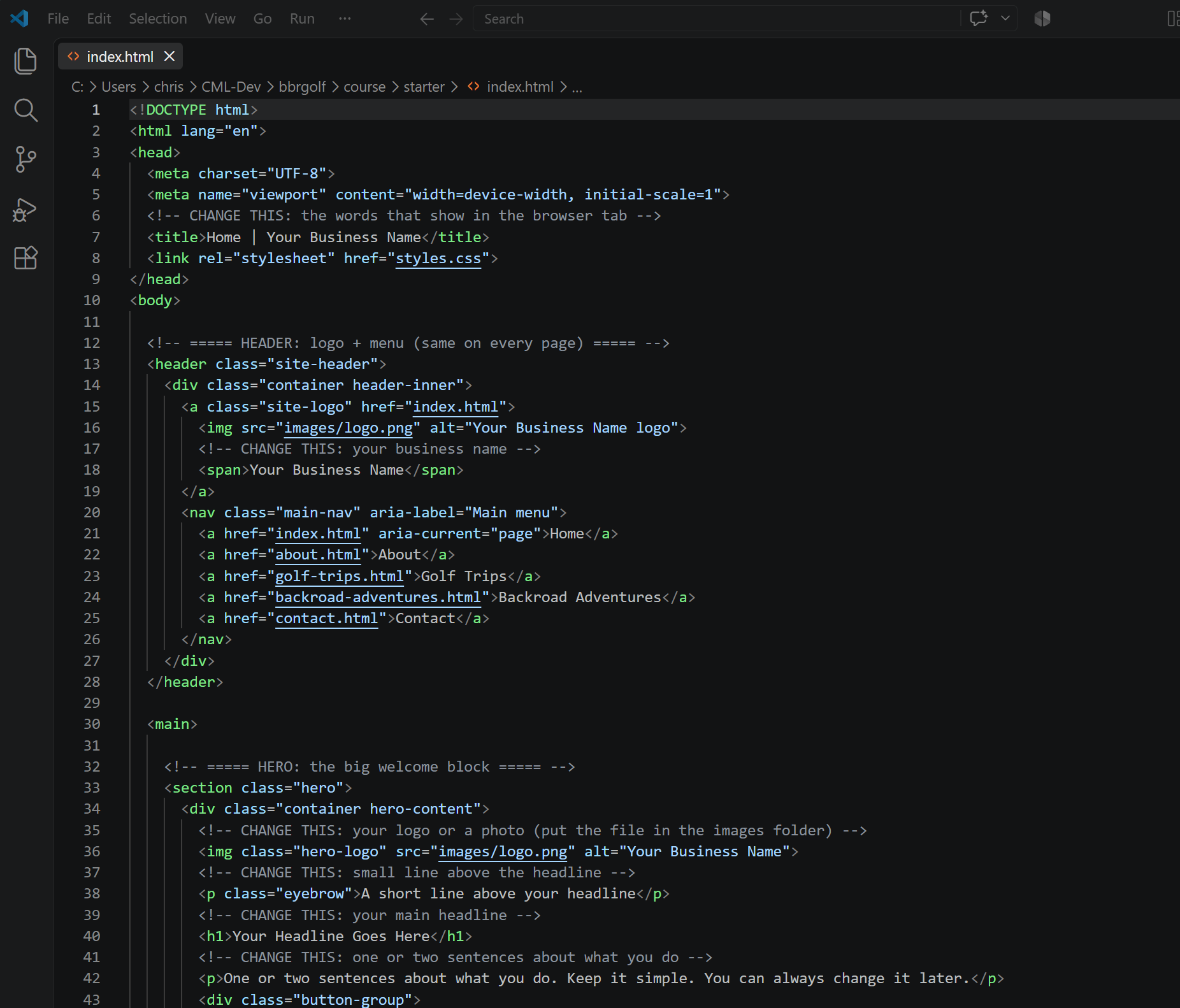
Open VS Code first. Then File → Open Folder → my-website. The file list appears on the left. Click index.html IN THAT LIST. (Double-clicking index.html in your folder opens the browser instead. That comes next.)
Same on your laptop. No VS Code yet? Install it from the link below, then come back.
You can see the line that says CHANGE THIS: your business name.
Say: “A website is a folder. That is the whole secret.”
⬇ Download VS Code (free, Windows or Mac)
https://code.visualstudio.com/download
Double-click index.html in the folder. It opens in the browser. This is the website, running from this laptop.
Same. Keep that browser tab open all class.
The page says “Your Business Name” at the top.
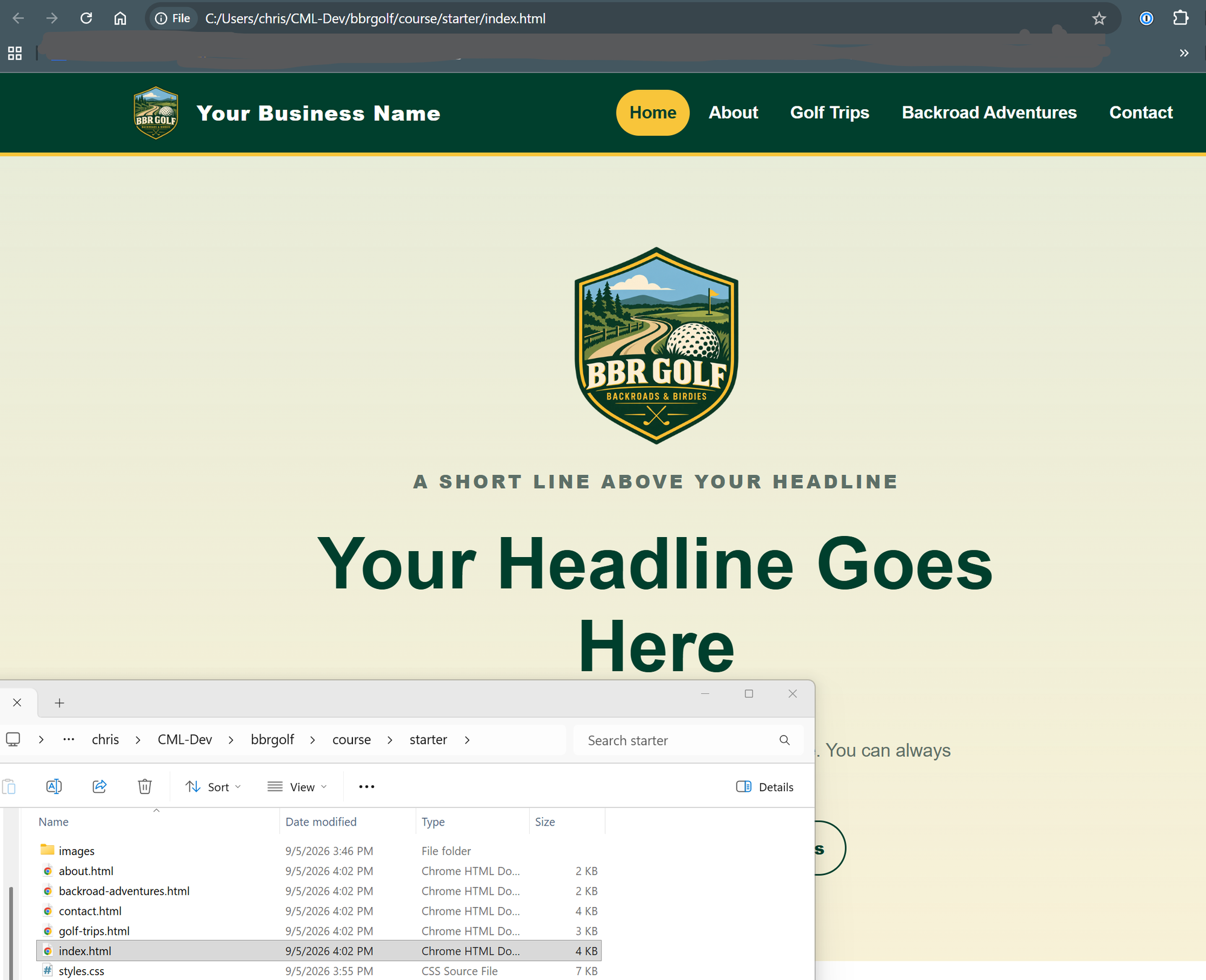
Change “Your Business Name” to “BBR Golf”. Three places: tab title, header, footer. Save (Ctrl+S). Refresh the browser (F5).
Your own name in those three places. Save. Refresh.
Your name is on the page. If not: did you save?
Say: “Change, save, refresh. You will do this a thousand times and it never gets harder.”
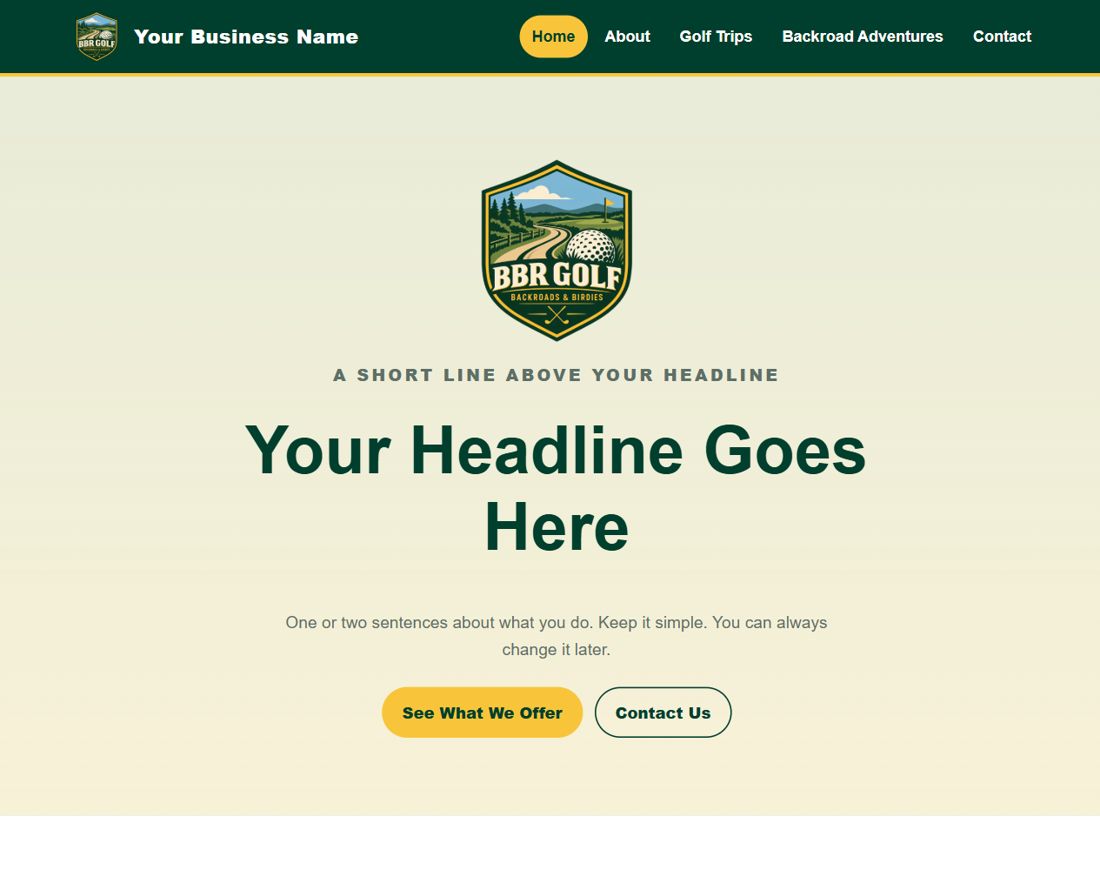
Change the headline and the sentence under it. Drop the badge into images, rename it logo.png. Save, refresh.
Your headline and sentence. Your logo if you brought one, otherwise leave ours for today.
Headline and sentence are yours. The logo shows top left.
Say: “Now it stops looking like a template.”
Home, About, Golf Trips, Backroad Adventures, Contact. Every page opens. Every menu comes back to Home. Same lines in every file.
Click all five on yours.
No page missing, no link broken.
Say: “Every page carries the menu. Nothing is hidden.”
about.html: heading and first paragraph. golf-trips.html: heading and the next-outing card. Save, refresh.
Your About page and your Page One. Page Two can wait for another day.
Both pages show your words after a refresh.
Say: “Two pages, one minute each.”
contact.html already has a working form. It needs one line: an access key from web3forms.com, which arrives by email. We will not do this live today.
At home: go to web3forms.com, enter your email, paste the key over YOUR-WEB3FORMS-ACCESS-KEY in contact.html. Change the email and phone lines while you are there.
Today: your Contact page opens and shows the form. That is enough.
Say: “A website cannot send email by itself. One pasted line rents a mailman. That is your homework.”
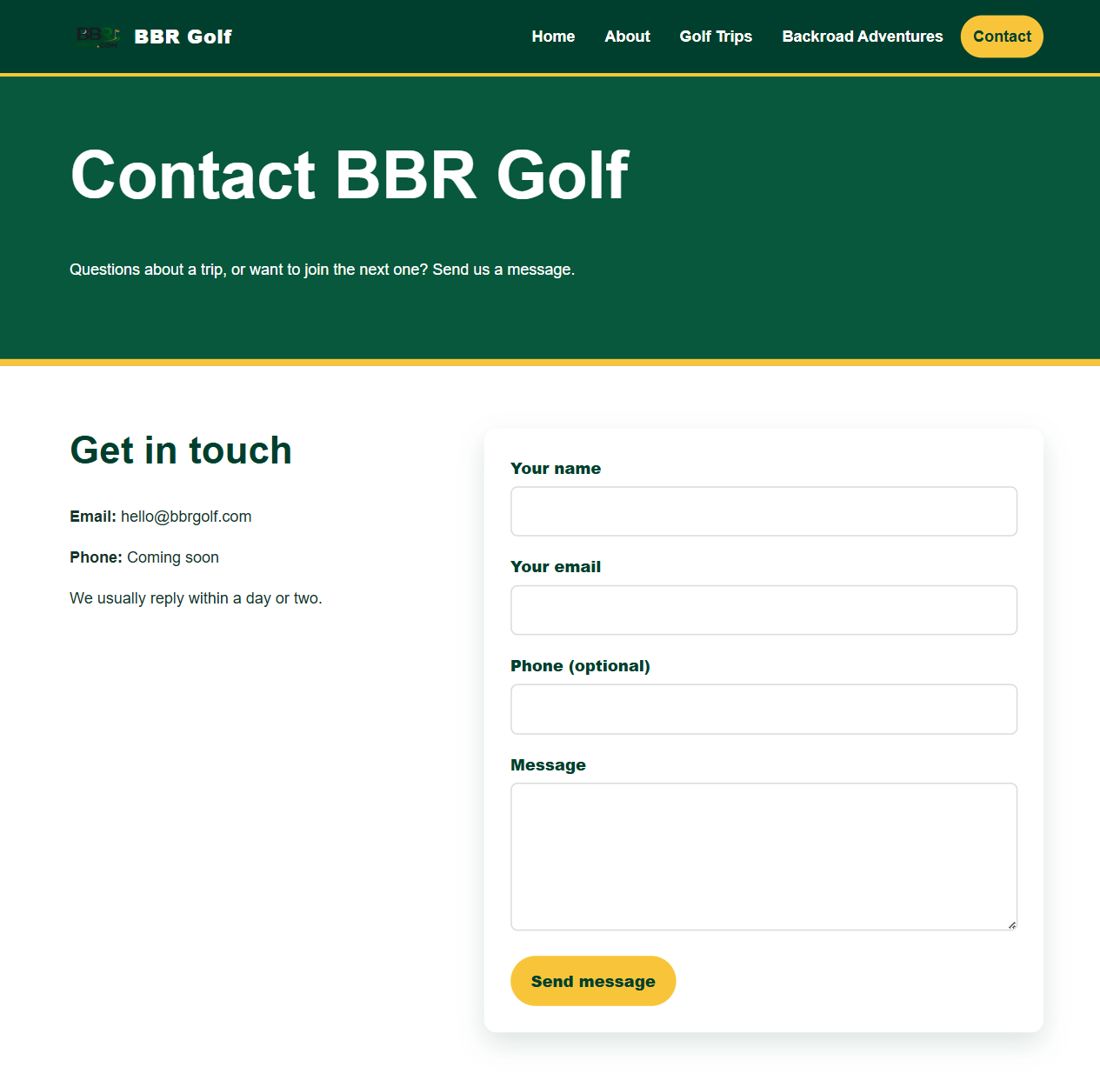
Five checks, out loud: all pages open · menu works from every page · logo shows · no “Your Business Name” left · contact details correct.
Run the same five checks on yours.
All five pass. This folder is now a finished website.
Say: “Before anything goes public, five checks.”
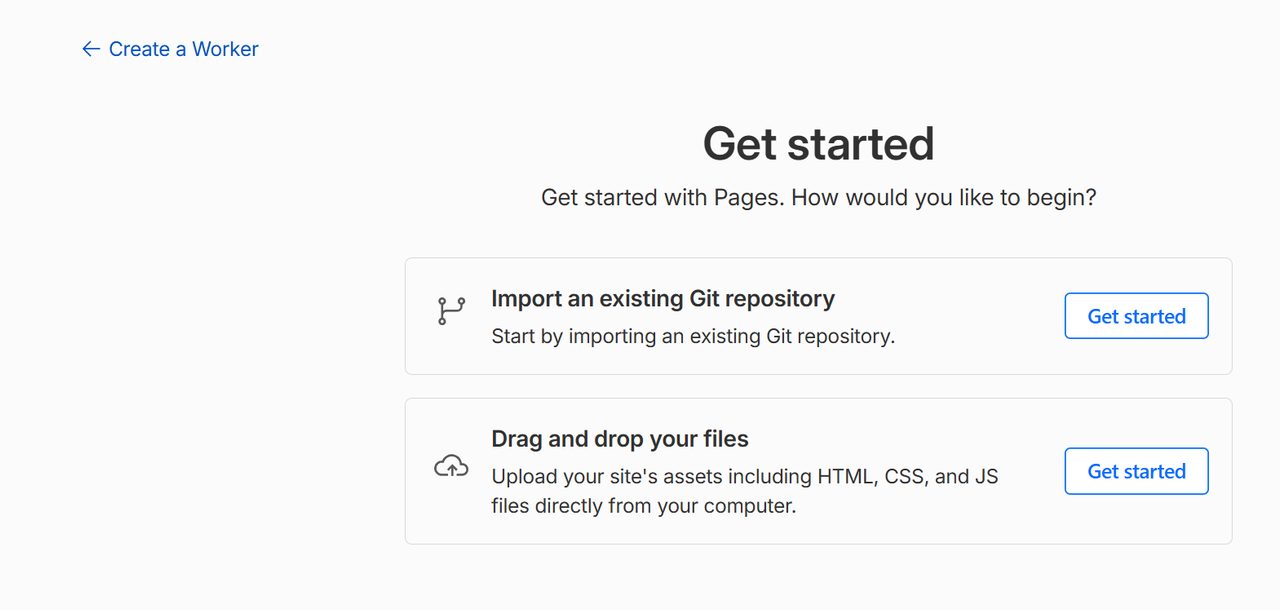
Cloudflare → Compute → Workers & Pages → Create → Pages → Drag and drop your files → Get started. Name it. Drag the folder in. Deploy. A pages.dev address appears. Custom domains → add bbrgolf.com.
Domain Active in Cloudflare? Same moves with your folder. Not yet? Zip the folder and do this at home when the Active email arrives.
Your pages.dev address loads your site, or your ZIP is saved where you can find it.
Say: “Watch the address bar.”
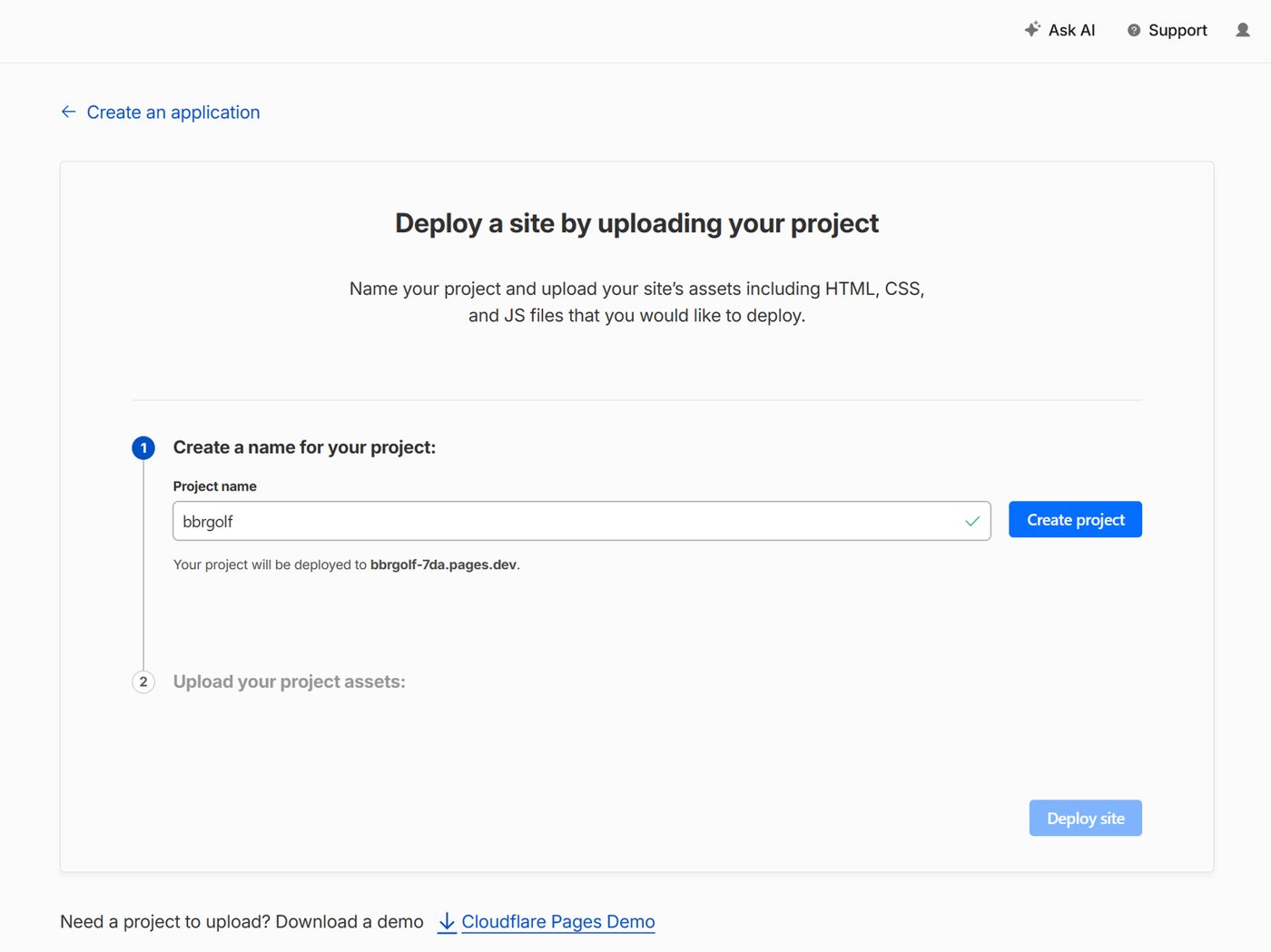
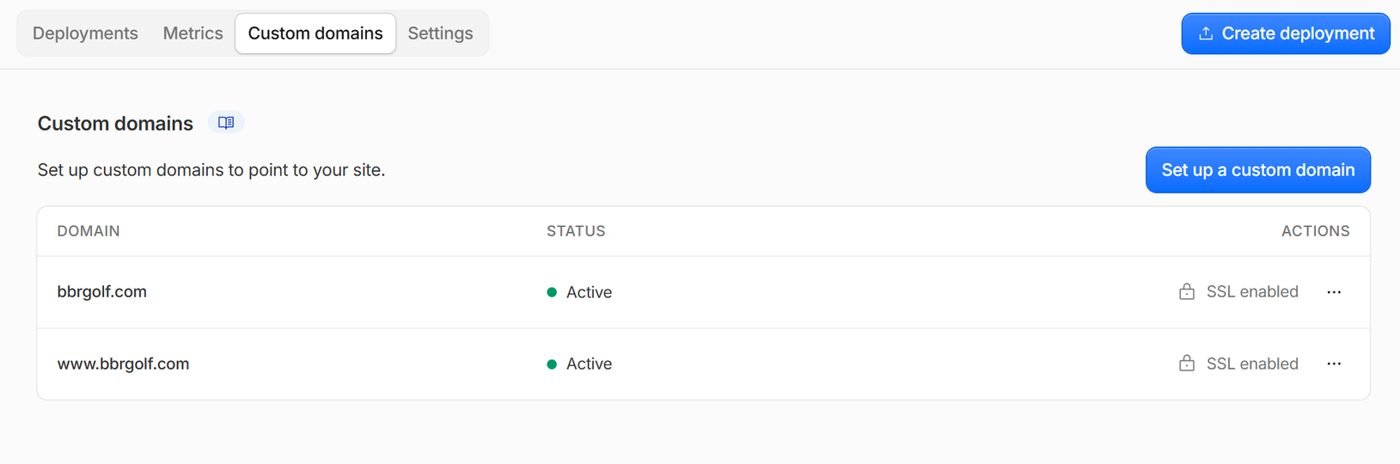
Cloudflare writes the DNS record for you. The padlock (SSL) is automatic. Nothing else to configure.
Scan the QR code. bbrgolf.com opens on every phone in the room. Click through the pages together.
Open your own site on your phone, if it is published.
You built a website today.
Say: “That page left this laptop, went to a server somewhere, and came back to every phone in this room.”


That is the whole job from now on. Everything from today lives at course.bbrgolf.com.
Full sheet with pictures: course.bbrgolf.com/homework.html